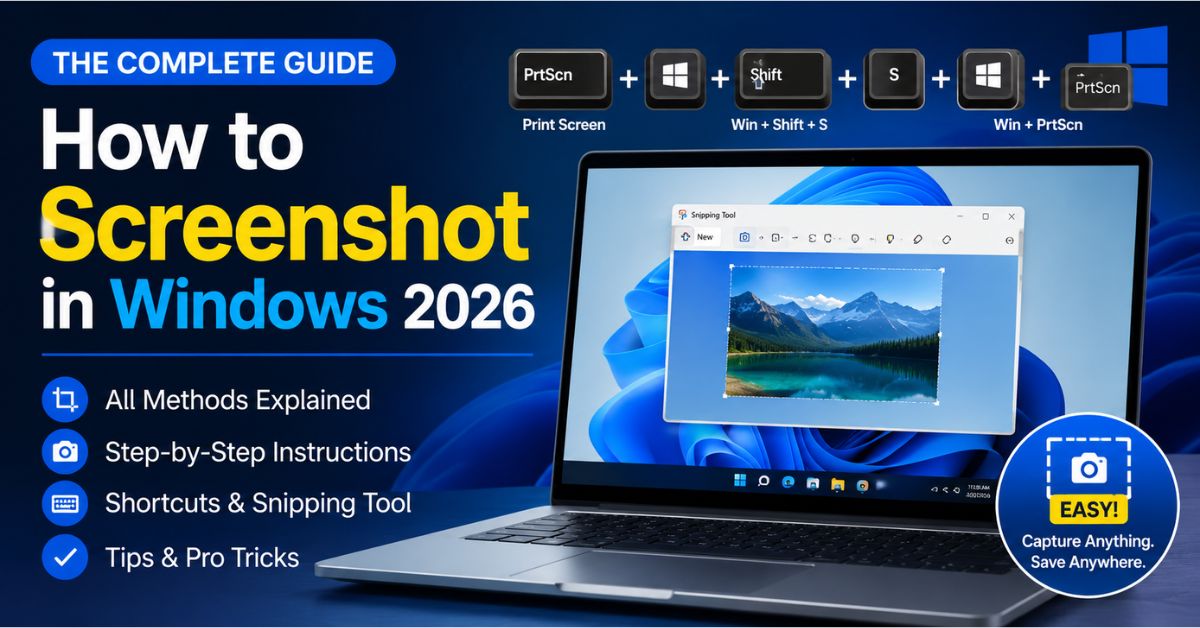
Need to capture your screen on a Windows PC? Whether you’re saving an error message, sharing a funny meme, or documenting steps for a tutorial, knowing how to screenshot in Windows is essential. The good news? Windows offers multiple built-in tools to take screenshots quickly and easily—no third-party software required.
This guide covers every method you’ll need, from keyboard shortcuts to built-in apps, so you can capture your screen like a pro—whether you’re using Windows 10 or Windows 11.
5 Easy Ways to Take a Screenshot in Windows
1. Use the Print Screen (PrtScn) Key
The classic method still works like a charm. Press the Print Screen key (often labeled PrtScn or similar) on your keyboard. This captures your entire screen and copies it to the clipboard.
- To save it as a file automatically, press Windows + Print Screen. The screenshot saves to the Screenshots folder inside your Pictures directory.
- To capture only the active window, press Alt + Print Screen. This copies just the focused window to the clipboard.
2. Snipping Tool: Flexible Screenshot Options
For more control, use the Snipping Tool, available in all modern Windows versions. It lets you capture free-form, rectangular, window, or full-screen snips.
- Open it by searching “Snipping Tool” in the Start menu.
- Click New and select the area you want to capture.
- Edit, annotate, or save your snip directly from the app.
In Windows 11, the Snipping Tool also supports delayed captures—perfect for menus or tooltips that disappear on click.
3. Snip & Sketch (Now Part of Snipping Tool)
Previously a separate app, Snip & Sketch has been merged into the updated Snipping Tool in Windows 10 and 11. You can still access it via Windows + Shift + S.
This shortcut opens a toolbar at the top of your screen, letting you choose from:
- Rectangular snip
- Freeform snip
- Full-screen snip
- Window snip
The captured image goes to your clipboard and triggers a notification. Click it to edit or save.
4. Game Bar: Screenshot While Gaming or Working
Originally designed for gamers, the Xbox Game Bar works for any app. Press Windows + G to open it, then click the camera icon or press Windows + Alt + PrtScn to take a screenshot.
Screenshots are saved in the Captures folder under Videos. Ideal for capturing gameplay, video calls, or presentations without interrupting your workflow.
5. Third-Party Tools (Optional but Powerful)
While Windows has robust built-in options, tools like Greenshot, ShareX, or Lightshot offer advanced features:
- Auto-upload to cloud
- Custom hotkeys
- Image editing and OCR
- Scrolling window captures
Use these if you frequently share or annotate screenshots professionally.
Where Are My Screenshots Saved?
It depends on the method you use:
- Windows + Print Screen: Saved in Pictures > Screenshots
- Snipping Tool / Snip & Sketch: Usually saved manually or copied to clipboard
- Game Bar: Saved in Videos > Captures
- Print Screen alone: Only copied to clipboard—paste into Paint, Word, or email
Always check your clipboard if you can’t find a screenshot—it might just be waiting to be pasted.
Read More : How to Delete Instagram Account in 2026
Pro Tips for Better Screenshots
- Use keyboard shortcuts for speed—they’re faster than opening apps.
- Name your files clearly when saving to avoid clutter.
- Edit before sharing—blur sensitive info, highlight key areas, or add arrows.
- Enable clipboard history (Windows + V) to access recent screenshots even after pasting.
Key Takeaways
- Use Windows + Print Screen for instant full-screen saves.
- Windows + Shift + S gives flexible capture options.
- The Snipping Tool is your go-to for editing and annotation.
- Game Bar works great for apps and games.
- Check Pictures > Screenshots or Videos > Captures for saved files.
FAQ: How to Screenshot in Windows
Q: Why isn’t my screenshot saving when I press Print Screen?
A: Pressing Print Screen alone only copies the image to your clipboard. To save automatically, use Windows + Print Screen. Also, check if your keyboard requires the Fn key to activate Print Screen.
Q: Can I take a screenshot of a specific window only?
A: Yes! Press Alt + Print Screen to capture just the active window. Then paste it into an image editor or document.
Q: How do I take a screenshot on a laptop without a Print Screen key?
A: Many laptops require you to press Fn + Windows + Spacebar or Fn + Insert (depending on model). Alternatively, use Windows + Shift + S or open the Snipping Tool directly.
Final Thoughts
Taking a How to Screenshot in Windows in Windows doesn’t have to be complicated. With built-in tools and smart shortcuts, you can capture, edit, and share your screen in seconds. Whether you’re a student, professional, or casual user, mastering these methods will save you time and frustration.
Next time you need to capture something on your screen, try one of these five methods—and never miss a moment again.